
Syncing your Bank and Credit Card to QuickBooks
Step 1: Connect a bank or credit card account
You can connect as many accounts as you need. Feel free to connect accounts you use for both business and personal, but you'll need to sort out personal transactions as you go.
Note: If you need to connect an Amex Business account follow these steps instead.
All other users please follow the steps below
- Sign in to QBO
- Go to the Banking menu or Transactions menu.
- Select the Banking tab.
- Select Connect Account on the landing page if this is your first time connecting. Or select Add account or Link account if you've already created one.
- Search for your bank. You can connect most banks, even small credit unions.
- Select Continue. Enter the username and password you use for your bank's website in the window.
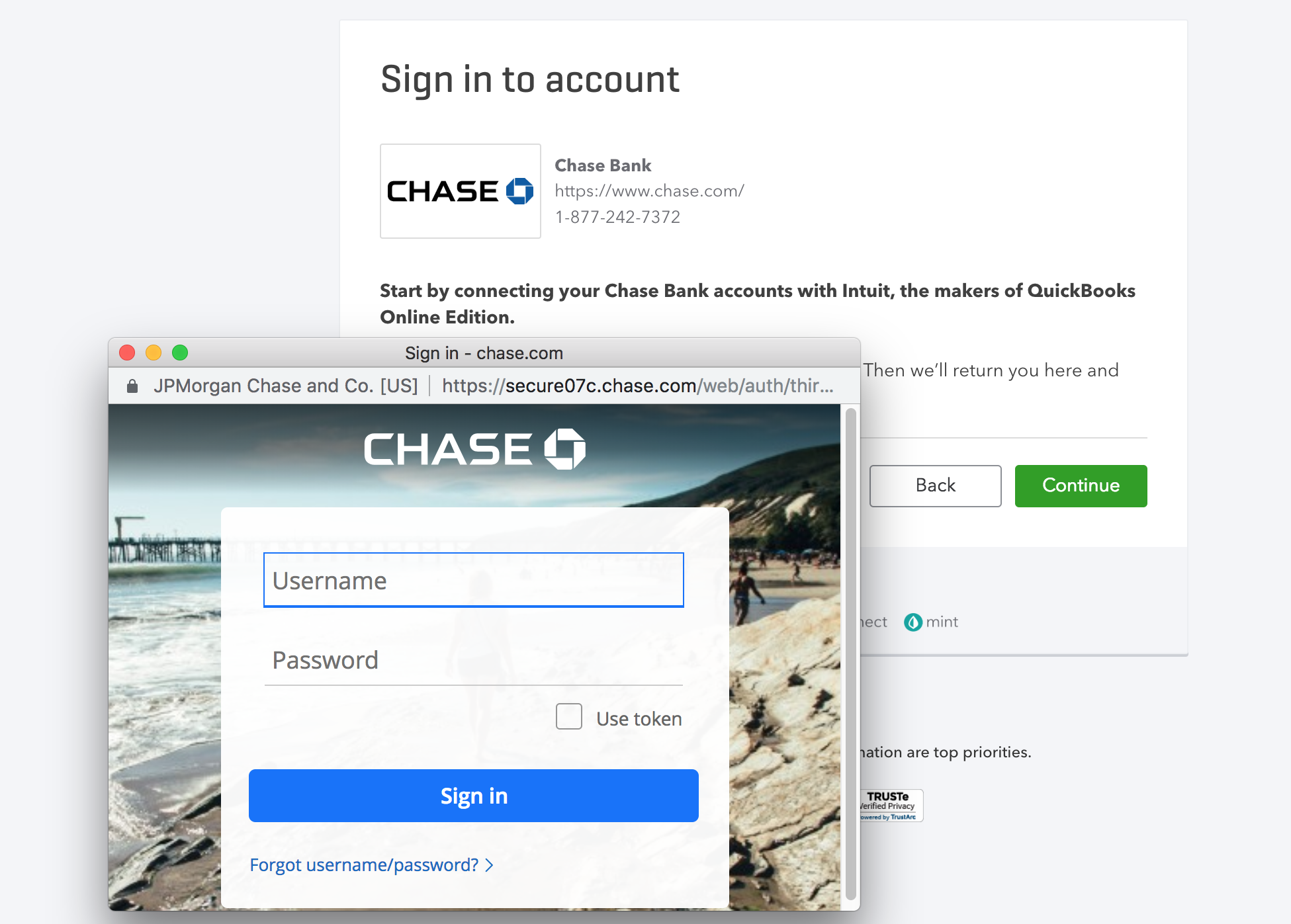
- Follow the onscreen steps to connect. Your bank may require additional security checks. It may take a few minutes to connect.
- Select the bank or credit card accounts you want to connect (savings, checking, or credit card). You should see all of your available accounts at your bank or credit card company.
- For each account you connect, select the matching account type from the dropdowns. These are accounts on your chart of accounts in QuickBooks and you can add a new account here first if needed.
- Select how far back you want to download transactions. Some banks let you download the last 90 days of transactions. Others can go back as far as 24 months.
- Select Connect.
Now your accounts are connected. QuickBooks automatically downloads transactions so you don't have to enter them manually. To refresh and get the latest transactions:
- Go to the Banking menu or Transactions menu.
- Select the Banking tab.
- Select Update.
If Changes are made to credentials: Update your connected accounts
To update your bank or credit card info, like your username or password, or refresh the connection:
- Go to the Banking menu or Transactions menu.
- Select the Banking tab.
- Select the Edit ✎ icon in the tile for the bank account you want to update.
- Select Edit sign-in info.
- Update your account info.
- Select Save and connect.
This is also where you can disconnect accounts from online banking. Disconnecting doesn't delete accounts or downloaded transactions. It just stops QuickBooks from downloading new transactions.